App for Wix Stores · Free plan

Get the customer’s file with every order

Selling mugs with a photo, printed shirts, signs or prints? Attach Files to Orders adds an upload box to your product page. Customers add their file before they buy, and you find it on the exact item of the order. No more files by email.

  • No code
  • Required uploads
  • Private files
Illustration: the upload box on a product page, and the order item the file reaches.
  • Upload on the product pageDrag and drop, or the camera roll on a phone.
  • On the exact order itemFiles show on Wix’s own order page.
  • Private filesKept in your own Media Manager.
  • Required when you need itNo checkout without the file.

See it in 41 seconds

From the upload box on your product page to the files on the order, with a look at the dashboard.

Features

From the product page to the order page

Set it up from your Wix dashboard. The upload box takes your site’s fonts and colors, and works on desktop and mobile.

An upload box under the product options

Customers drag and drop a file or choose one; on phones, from the camera roll. They see a thumbnail and the progress, and can replace or remove a file. A wrong type or a file that is too big gets a clear message right away.

Product page

Required uploads

Make a file required, and the item can’t be bought without it. Wix’s own cart and checkout ask the customer to add the file, with a link back to the product page. Works with Add to Cart and Buy Now; your store’s buttons stay as they are.

Cart & checkout

Every file on the right item

Each file reaches the exact item of the order. You find it on Wix’s own order page, in a Customer files card with downloads, and “Files: logo.png” is written on the order item itself.

Orders

Private, in your own Media Manager

Files are stored in your site’s Media Manager, not on our servers. Their public link doesn’t open; downloads use links that expire.

Privacy

Photos, PDFs, design files and 3D models

JPG, PNG, HEIC, TIFF and WEBP images, with the original kept byte for byte, CMYK too. PDF and Word documents, AI, EPS, PSD, INDD, CDR and SVG design files, STL and 3MF models, and ZIP, RAR and 7Z archives.

File types

Upload fields your way

A field for all products, for a category or for one product. Set its title, instructions, file types, max size and files per item, in the dashboard or from your products list.

Dashboard

A Files page for every order

See every order with files and search them. A Missing files tab shows orders without a required file, and you can see uploads that are still in carts.

Dashboard

You choose how long files stay

Keep files forever, or for 90 days, 1 year or 2 years; then they move to the Media Manager’s trash. Uploads that never reach an order go to the trash after 7 days.

Settings

Your store’s look, in English and Hebrew

The upload box uses your site’s fonts and colors, and you can fine-tune it in the Editor. It speaks English and Hebrew, right to left included.

Editor

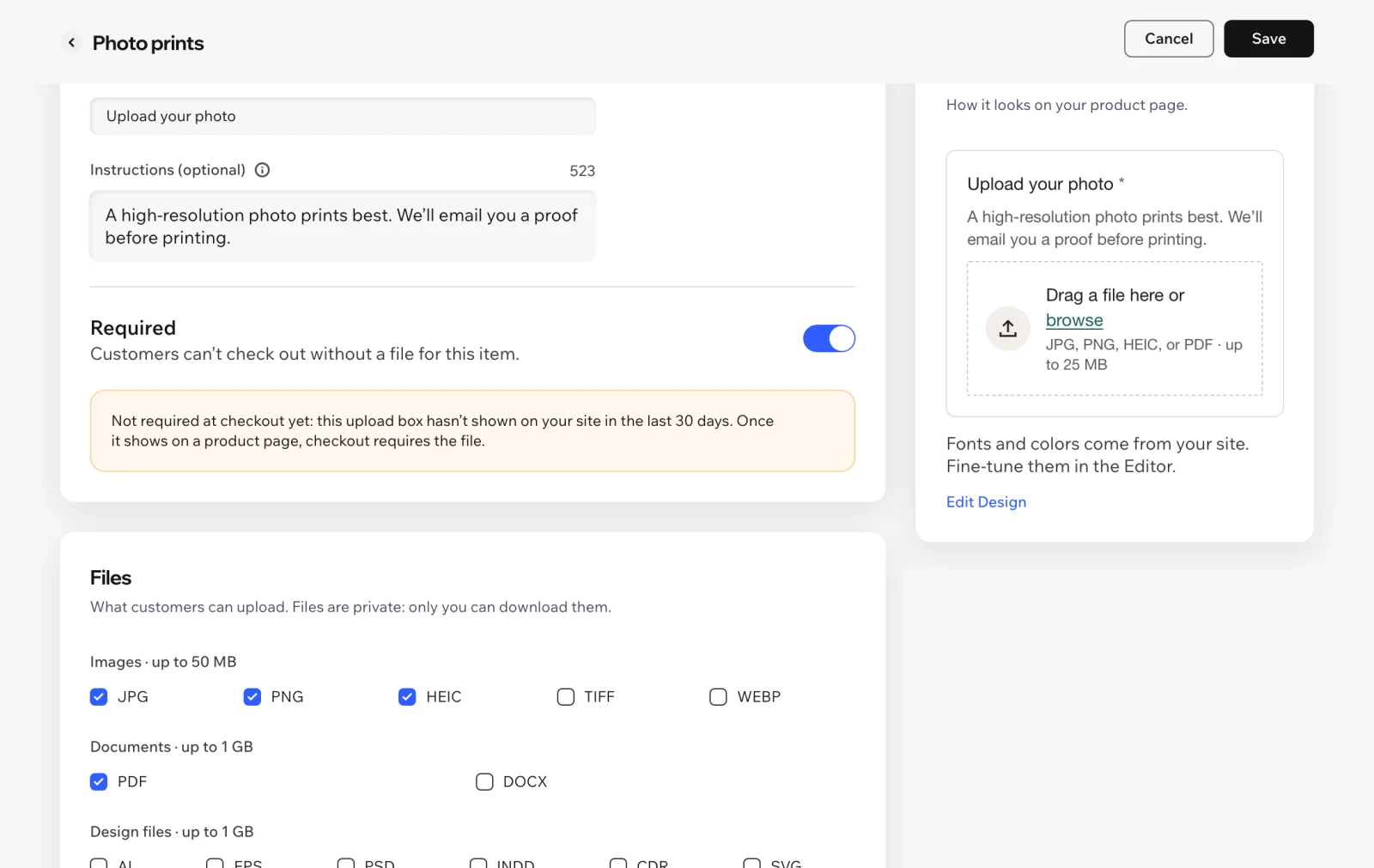
Required, only where it shows

Checkout asks for the file only once the upload box is on your product page, so a page without the box never blocks a sale.

The upload field editor with Required on, and a note that checkout asks for the file once the box shows on the site
How it works

Live in three steps

No code: the app uses your store’s product page, cart and checkout as they are.

  1. Add the upload box

    In the app, click Add to Product Page and confirm. The box appears under your product options.

  2. Create an upload field

    Choose the products, the title and instructions, the file types and limits, and whether a file is required.

  3. Publish your site

    Customers upload their files as they order, and you find them on the order page.

Plans

A free plan you can actually run a store on

Every feature is in the Free plan. Pro removes the limits. Plans are billed through Wix, like any app in the Wix App Market.

Free

$0

Every feature included.

  • Up to 5 upload fields
  • Files up to 50 MB
  • 100 uploads a month that reach orders

Pro

$4.99 a month, or $49 a year

For stores that take many files, or big ones.

  • Unlimited upload fields
  • Unlimited uploads
  • Big files, up to each file type’s limit: up to 1 GB for PDFs, design files and 3D models, and 4 GB for archives

Only uploads that reach an order count. On the Free plan, uploads keep working after the monthly limit is reached, and the dashboard asks you to upgrade.

FAQ

Questions merchants ask

Is there a free plan?

Yes, with every feature: up to 5 upload fields, files up to 50 MB and 100 uploads a month that reach orders. Pro costs $4.99 a month or $49 a year, with unlimited fields and uploads and big files, up to each file type’s limit.

Where does the upload box appear?

On your Wix Stores product page, under the product options, on both the new and the previous product page. It shows on products that have an upload field.

Can I make a file required?

Yes. Turn on Required in the upload field. If a customer adds the item without a file, Wix’s own cart and checkout show a message with a link back to the product page, and the order can’t be placed until the file is added.

Where do I find the files?

On Wix’s order page, in the Customer files card, ready to download. The file names are also written on the order item. The app’s Files page lists every order with files, and the files themselves are in your Media Manager, in the “Attach Files to Orders” folder.

Which file types can customers upload?

Images (JPG, PNG, HEIC, TIFF, WEBP), documents (PDF, DOCX), design files (AI, EPS, PSD, INDD, CDR, SVG), 3D models (STL, 3MF) and archives (ZIP, RAR, 7Z). You choose which ones each field accepts. Images are kept exactly as uploaded, CMYK included.

Are the files private?

Yes. They are stored as private files in your own Media Manager, not on our servers. A file’s public link doesn’t open, and downloads use links that expire.

Does it work with Buy Now?

Yes. Files reach the order whether the customer uses Add to Cart or Buy Now. The app doesn’t replace your store’s buttons.

Which languages does it support?

The dashboard and the upload box are in English and Hebrew, right to left included. The box follows your site’s language; in other languages its own words show in English. Field titles and instructions are your own words.

More answers on the support page.

Files with the order, not in your inbox

Install Attach Files to Orders and add the upload box to your product page.

Get it on the Wix App Market